GEOGLOWS Demo (Part 2)
This tutorial picks up where GEOGLOWS Demo left off. You will extend the dashboard you built in Part 1 by connecting the map’s comid attribute to a new variable input, then adding a GeoGLOWS forecast plot grid item that updates whenever the user clicks a river segment on the map.
For an alternative approach that opens the forecast plot in a floating popup modal instead of a permanent grid item, see Custom Popup Modal (GEOGLOWS Forecast).
Finished product: https://demo.tethysgeoscience.org/apps/tethysdash/dashboard/6a74d783-3885-4c66-8b87-83dbf927d67f
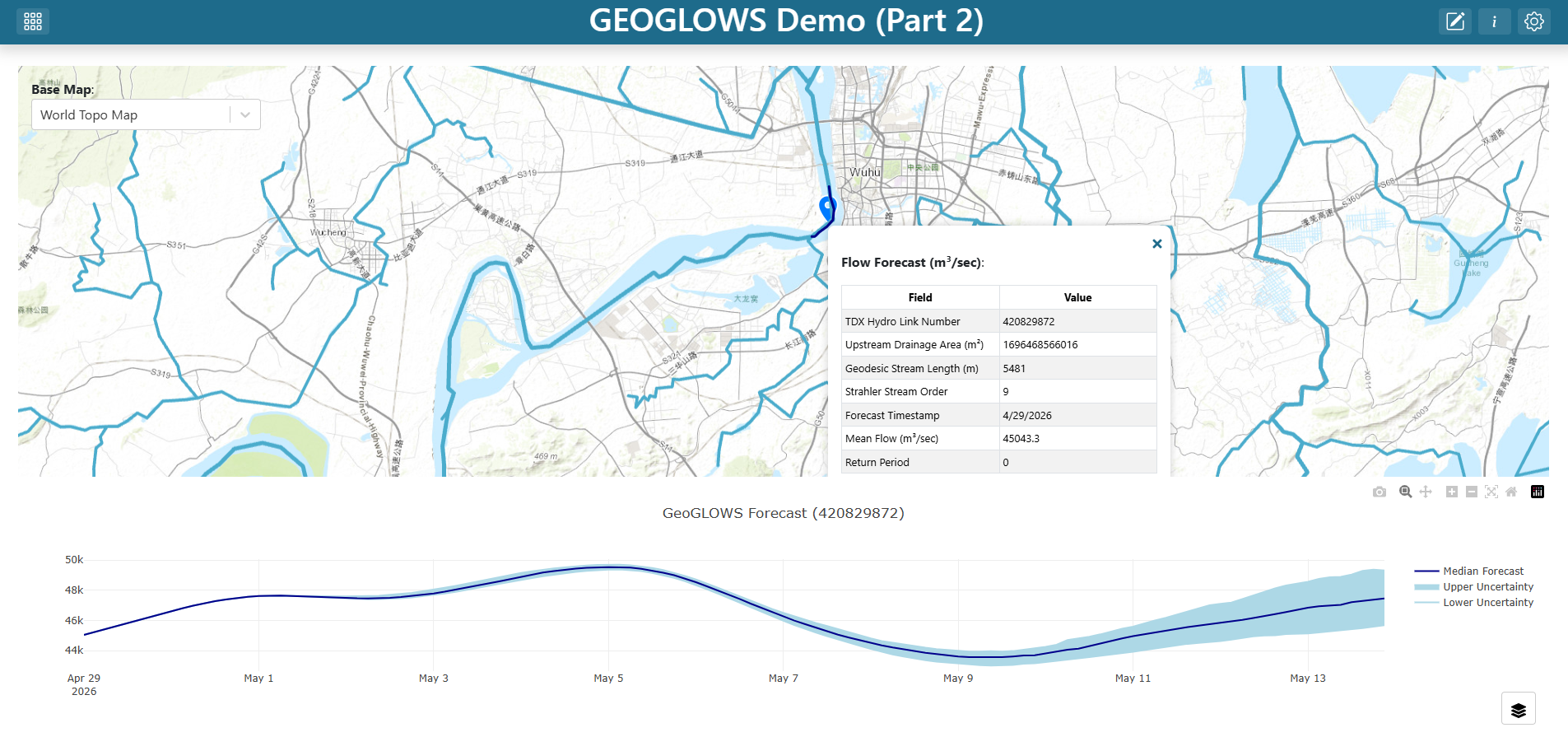
What you will build
A
river_idvariable input that captures thecomidof whichever river segment the user clicks on the map.A GeoGLOWS Forecast Plot grid item that re-fetches whenever
river_idchanges, with a friendly placeholder shown before any river has been selected.
Prerequisites
Complete GEOGLOWS Demo first. You should have a dashboard named GEOGLOWS Demo that contains a Map of Chinese GEOGLOWS flowlines and a Base Map variable input.
A local installation of TethysDash — see Installation and Setup.
The tethysdash_examples plugin package must be installed as a TethysDash dependency. It provides the
GeoGLOWS Forecast Plotvisualization used in this tutorial.
Step 1 — Edit the dashboard
Open your GEOGLOWS Demo dashboard and click the Edit (pencil) icon in the toolbar to enter edit mode.
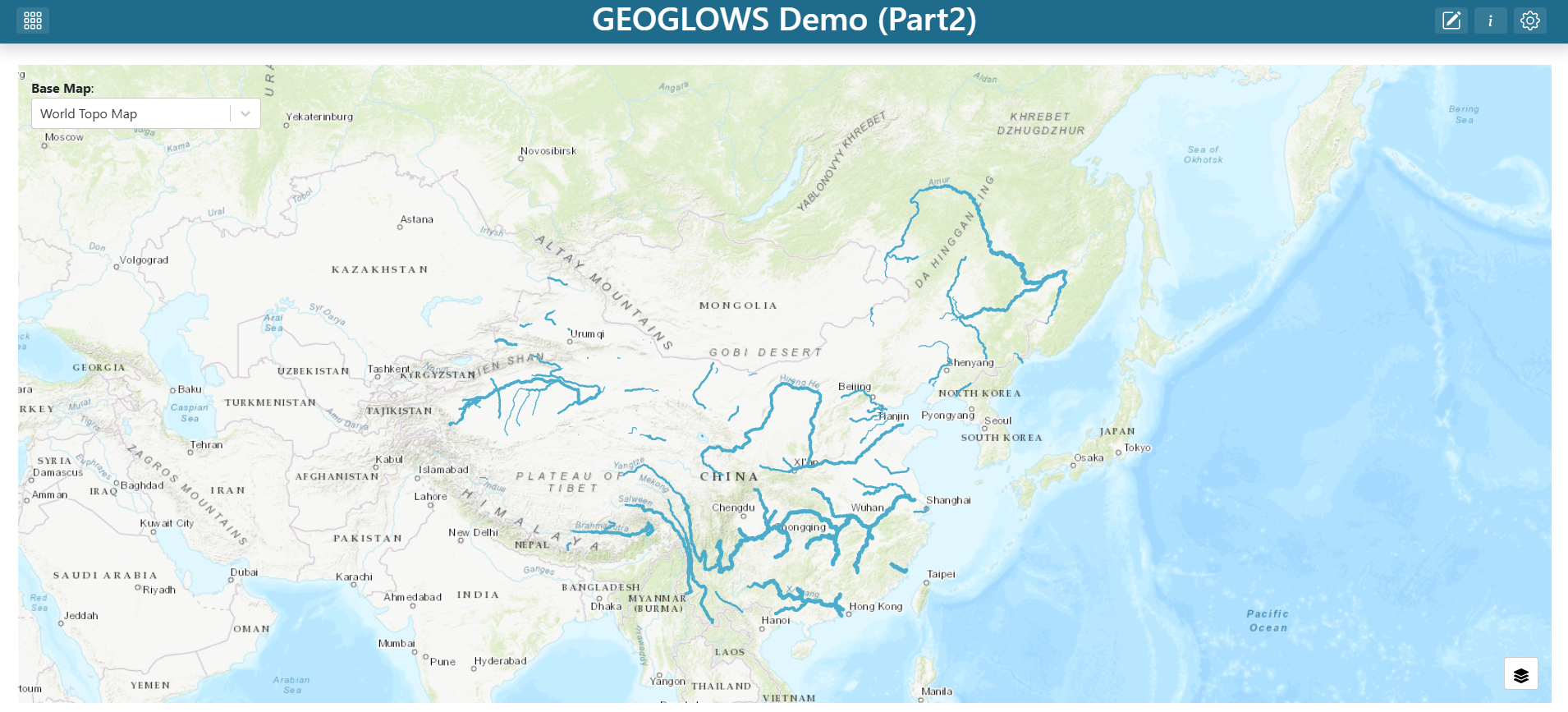
Step 2 — Edit the map layer
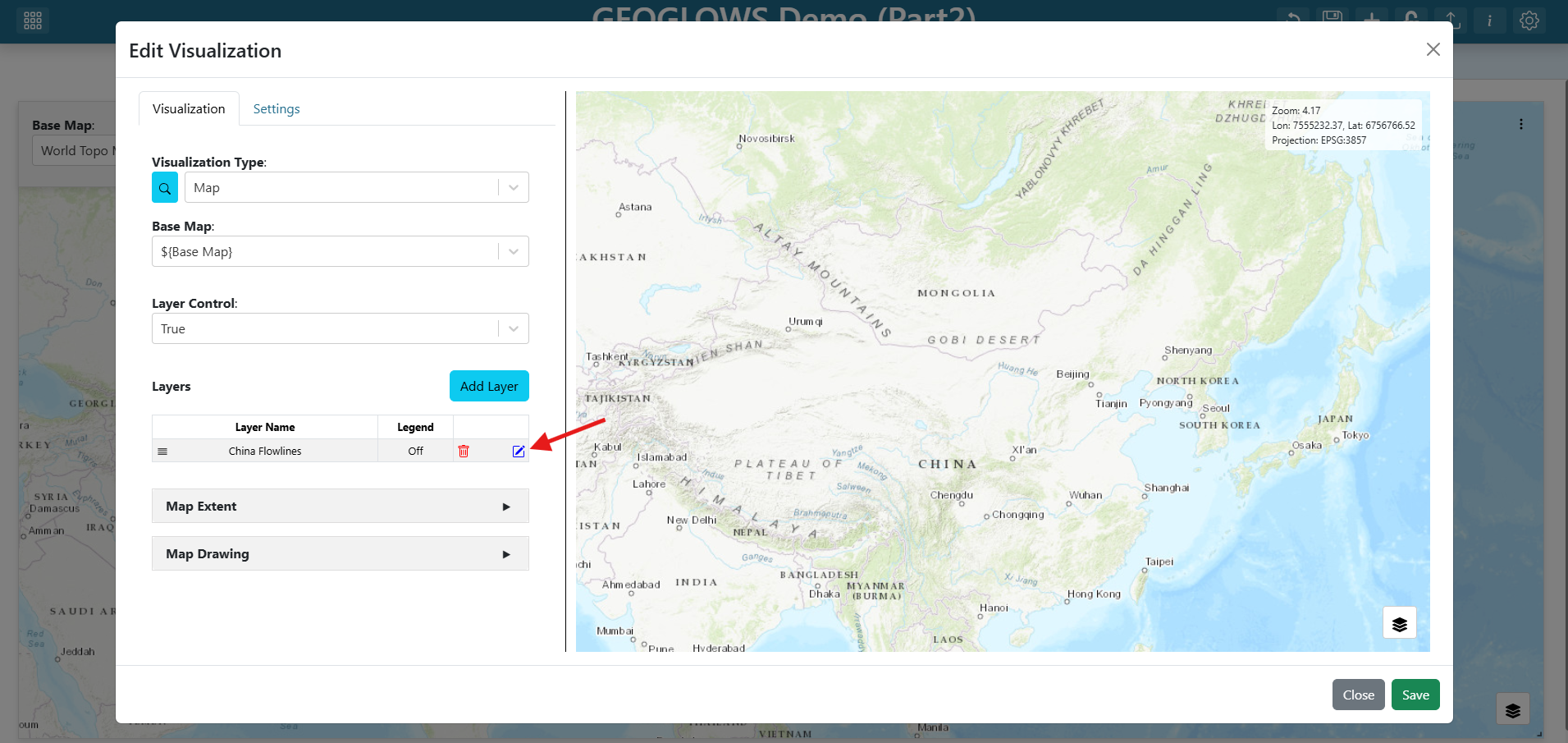
Find the map grid item, click its three-dot menu, and click Edit.
In the map editor’s Layers list, click the China Flowlines layer to open the layer editor.
Step 3 — Connect comid to a river_id variable input
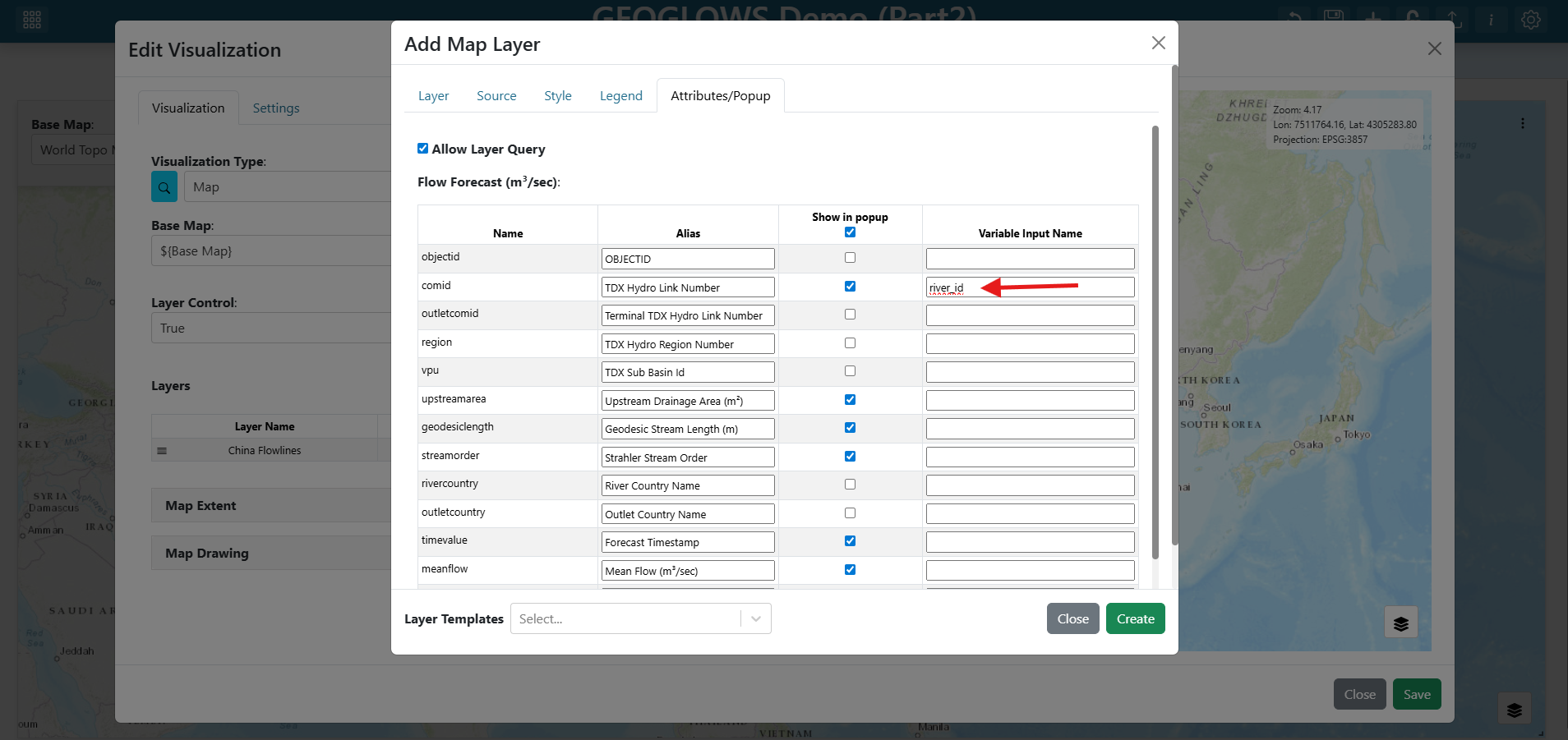
Switch to the Attributes/Table Popup tab in the layer editor.
Find the
comidrow.Set its Alias to
River ID.Set its Variable Input Name to
river_id.
Note
Setting a variable input name on an attribute means: whenever a user clicks a feature on the map, that feature’s value for this attribute is written to the named variable input. Any visualization that references ${river_id} will then re-fetch with the new value.
See Attributes/Table Popup Tab for the full reference on attribute aliases and click-to-variable bindings.
Click Create at the bottom of the layer editor.
Click Save at the bottom of the map editor.
Step 4 — Inspect the GeoGLOWS Forecast Plot plugin
The visualization you are about to add is provided by a TethysDash visualization plugin — an external Python package that subclasses TethysDashPlugin and is auto-discovered when installed alongside TethysDash. The Visualization Plugins page is the full reference for the plugin API: every supported type, every args field type, send_update, packaging, and discovery.
Here is the full source for the GeoGLOWS Forecast Plot plugin from the tethysdash_examples repository:
from tethysapp.tethysdash.plugin_helpers import TethysDashPlugin
import requests


class GeoGLOWSForecastPlot(TethysDashPlugin):
    name = "geoglows_forecast_plot"
    group = "Tutorials"
    label = "GeoGLOWS Forecast Plot"
    type = "plotly"
    tags = [
        "example",
        "plotly",
        "tutorial",
        "geoglows",
    ]
    description = "A GeoGLOWS forecast plot for the GeoGLOWS tutorial"
    args = {"river_ID": "number"}

    def run(self):
        self.send_update("Loading forecast data from GeoGLOWS API...")
        url = f"https://geoglows.ecmwf.int/api/v2/forecast/{self.river_ID}?format=json"
        response = requests.get(url)
        forecast_data = response.json()

        self.send_update("Processing forecast data...")
        data = [
            {
                "type": "scatter",
                "x": forecast_data["datetime"],
                "y": forecast_data["flow_uncertainty_lower"],
                "name": "Lower Uncertainty",
                "line": {"color": "lightblue"},
            },
            {
                "type": "scatter",
                "x": forecast_data["datetime"],
                "y": forecast_data["flow_uncertainty_upper"],
                "name": "Upper Uncertainty",
                "line": {"color": "lightblue"},
                "fill": "tonexty",
                "fillcolor": "lightblue",
            },
            {
                "type": "scatter",
                "x": forecast_data["datetime"],
                "y": forecast_data["flow_median"],
                "name": "Median Forecast",
                "line": {"color": "darkblue"},
            },
        ]

        layout = {
            "title": f"GeoGLOWS Forecast ({self.river_ID})",
        }

        config = {"displayModeBar": True}

        return {"data": data, "layout": layout, "config": config}
Key things to understand before wiring the plugin into the dashboard:
Attribute |
Value |
What it means |
|---|---|---|
|
|
Unique identifier written into the dashboard JSON’s |
|
|
How the plugin appears in the Visualization Type dropdown |
|
|
TethysDash renders |
|
|
Declares a single numeric input; TethysDash auto-renders a form field for it |
The run() method fetches the forecast for self.river_ID from the GeoGLOWS REST API, builds three Plotly traces (lower-uncertainty band, upper-uncertainty band, and median forecast), and returns them in the standard Plotly figure shape. The self.send_update(...) calls stream progress messages back to the dashboard over WebSocket while run() is in flight, so the user sees status instead of a silent spinner.
Step 5 — Add a new dashboard item
Click the + (Add Dashboard Item) icon in the toolbar. A new empty grid item appears on the dashboard.
Step 6 — Configure the GeoGLOWS Forecast Plot
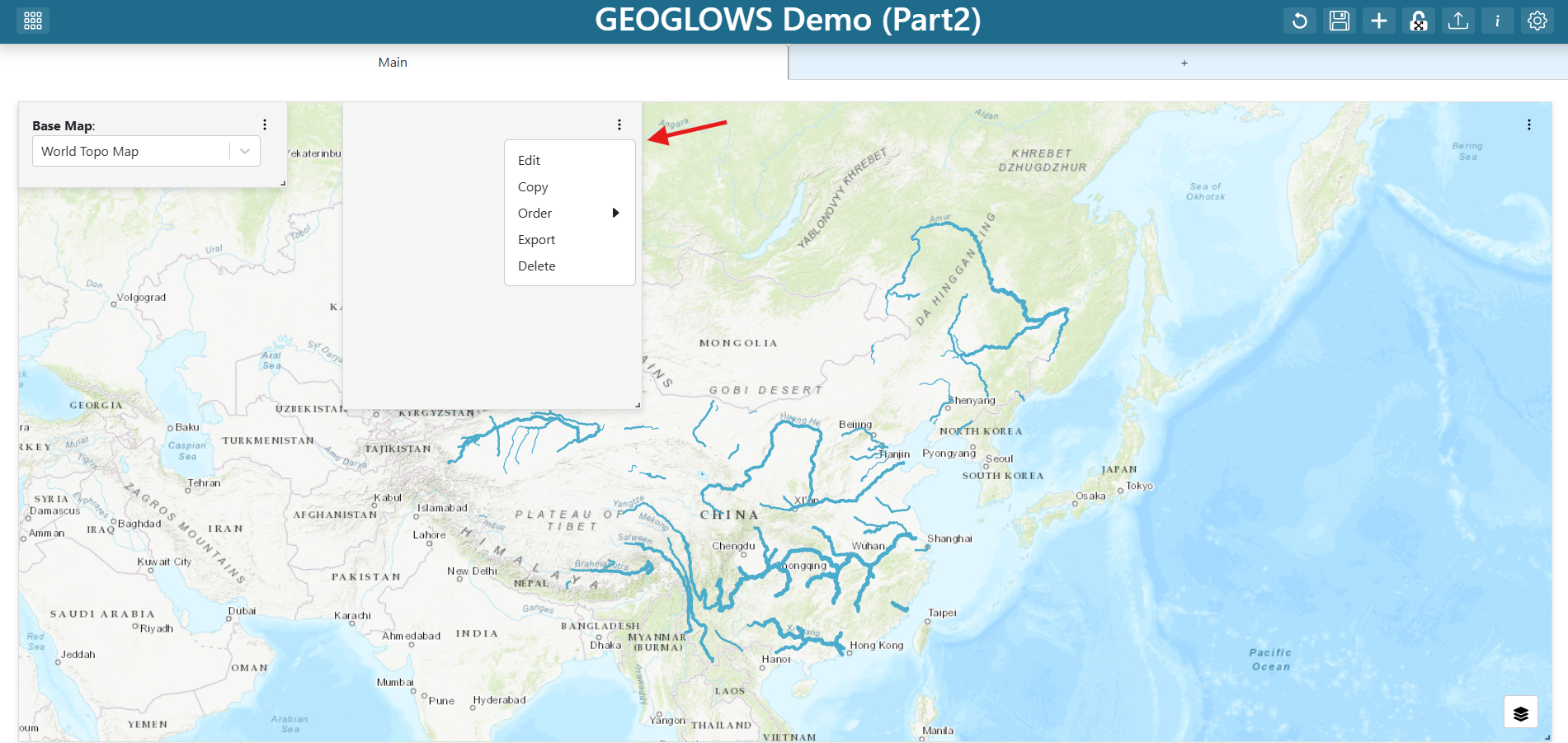
Find the new grid item, click its three-dot menu, and click Edit.
Set the Visualization Type to
GeoGLOWS Forecast Plot(under the Tutorials group).Set the plot’s properties:
River ID:
${river_id}
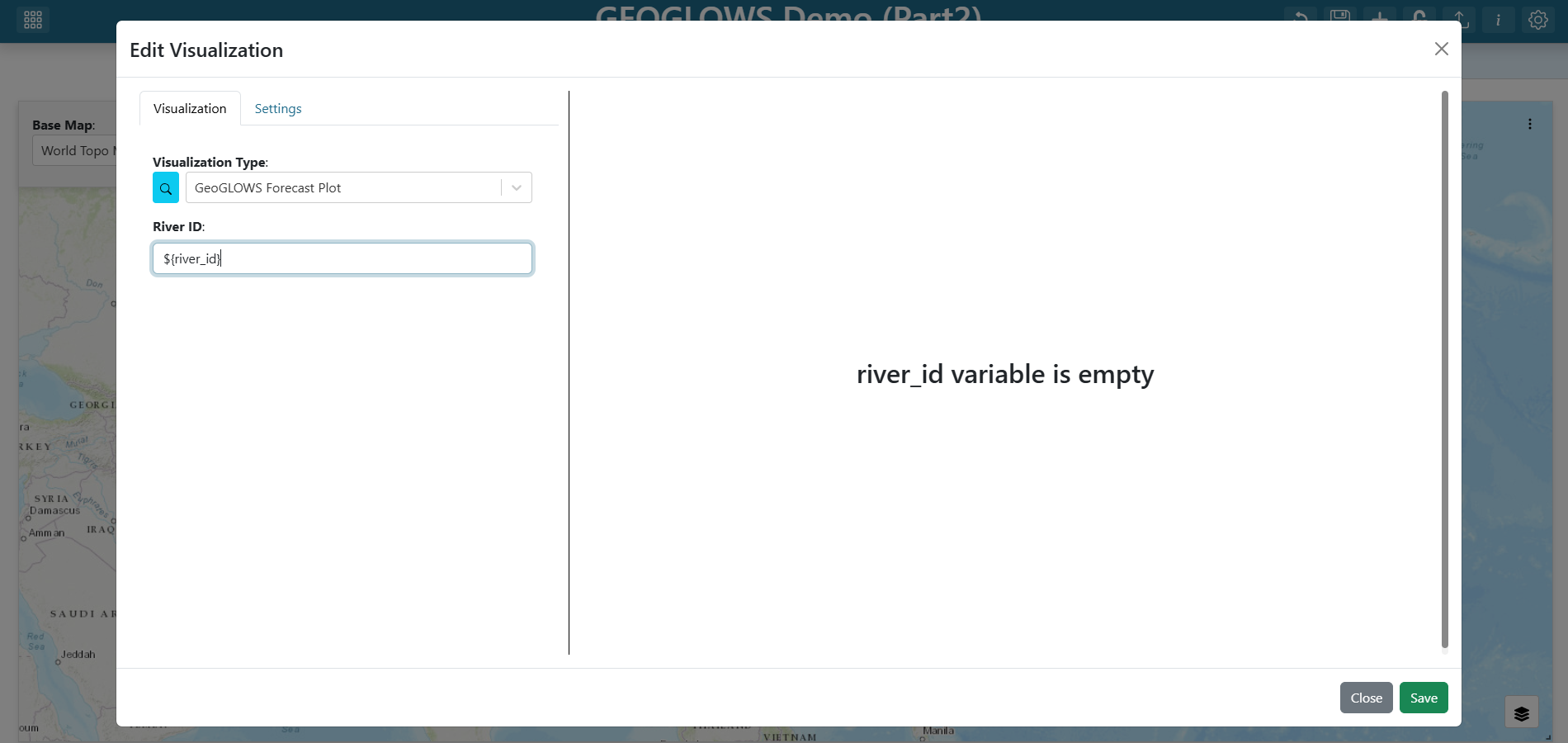
The ${river_id} template tells the plot to read from the variable input you connected to the map. When the user clicks a river segment, the plot re-fetches the forecast for that segment’s comid.
Step 7 — Configure the plot’s settings
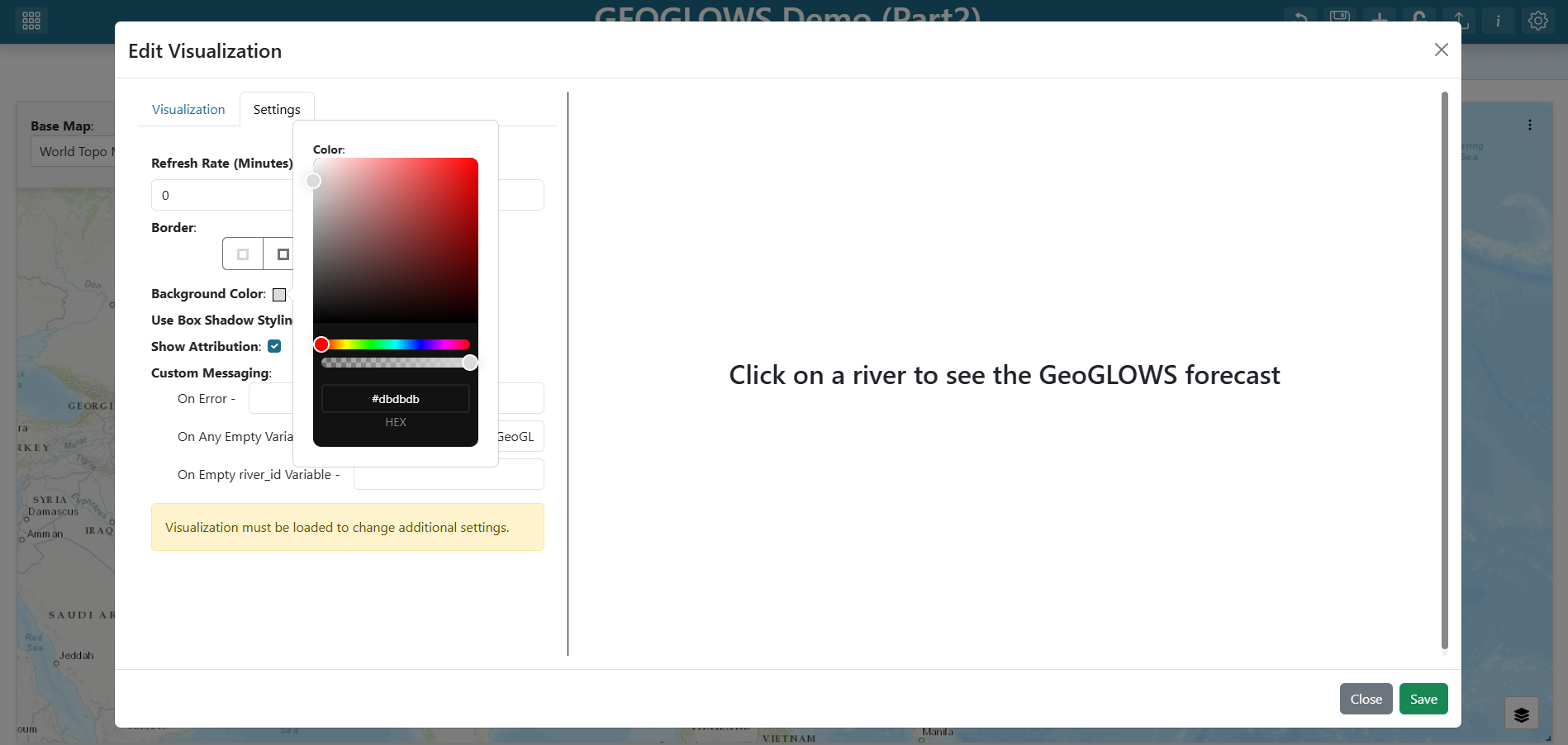
Until the user clicks a river, river_id has no value. Configure a friendly placeholder so the plot does not look broken, and set a background color so the plot stands out from the map.
Switch to the Settings tab in the visualization editor.
Under On Any Empty Variable, enter:
Click on a river to see the GeoGLOWS forecastSet the Background Color to
#dbdbdb(light grey).
Note
See Configuring Visualizations for every option in the visualization Settings tab.
Step 8 — Save the item
Click Save at the bottom of the visualization editor. The new grid item now renders the placeholder message.
Step 9 — Resize and place the plot
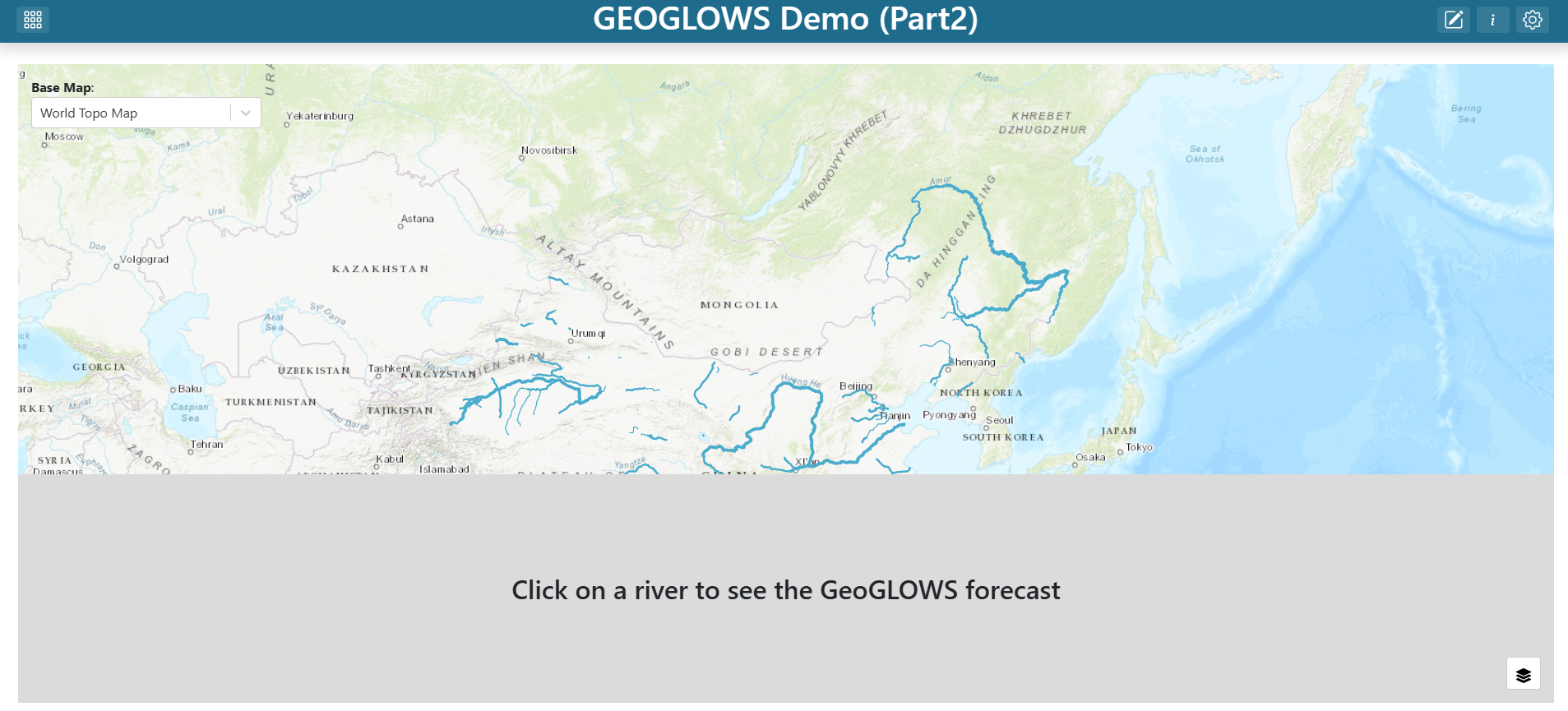
Drag the bottom-right corner of the new grid item to resize it. A common layout is to place the plot below the map spanning the full dashboard width so the forecast is easy to read at a glance.
Step 10 — Save the dashboard
Click the dashboard Save (disk) icon in the toolbar to persist your changes.
Try it out
Exit edit mode and zoom in on the map past zoom 12 until the flowlines render. Click any river segment in China — the GeoGLOWS Forecast Plot grid item should immediately re-render with the forecast for that comid. Click a different segment and the plot updates again.
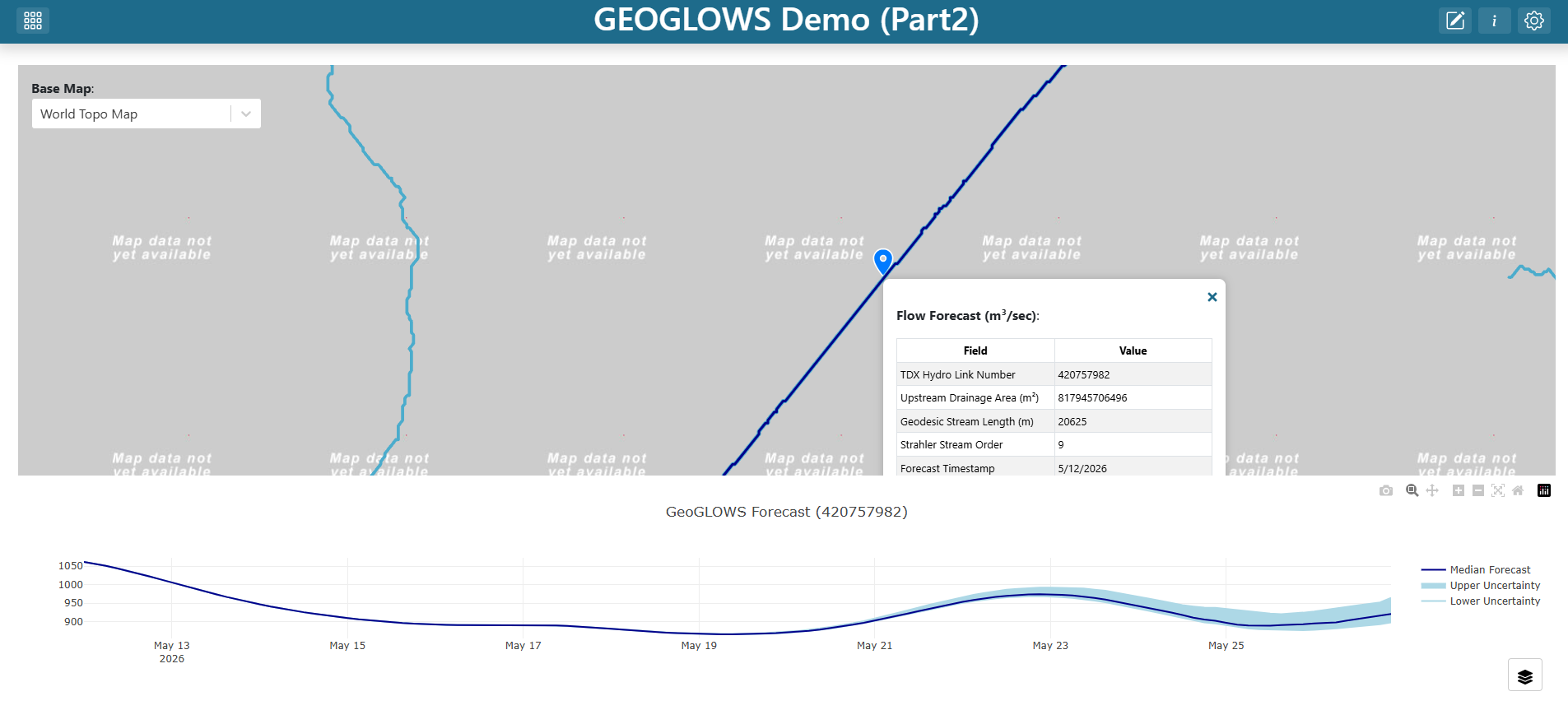
Final Solution
GEOGLOWS_China_TethysDash_Part2.json
Note
This file can be imported into TethysDash via the Import Dashboard button on the landing page. Importing it will give you a working dashboard that matches the one you built in this tutorial, which you can then explore and edit as you like.