Editing Dashboards
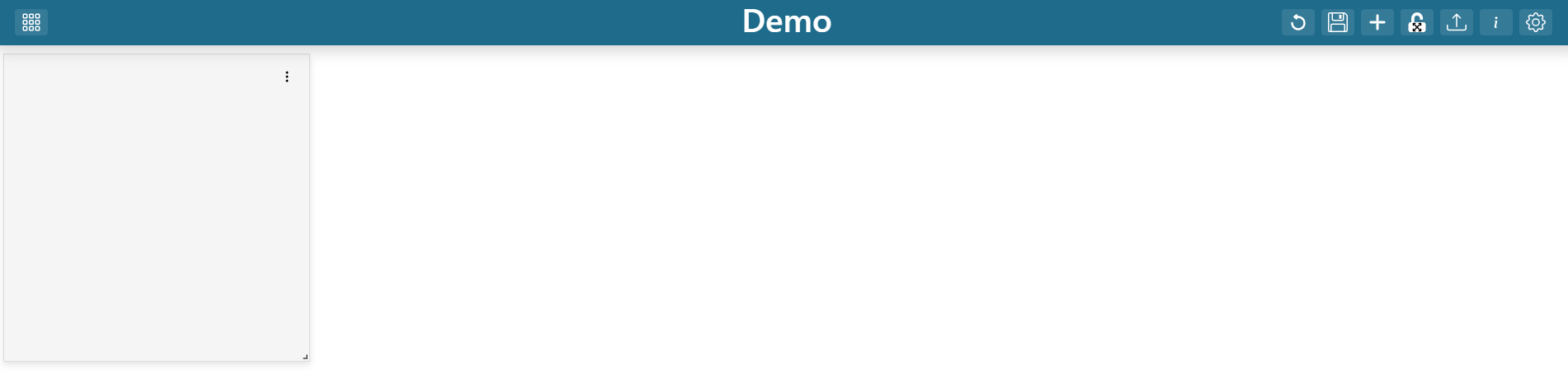
Users can edit dashboards they own or have editor/admin access to. After selecting a dashboard, click the  in the app header to enter edit mode. In edit mode, you can:
Add, move, resize, or delete dashboard items
Add and rename tabs to organize content
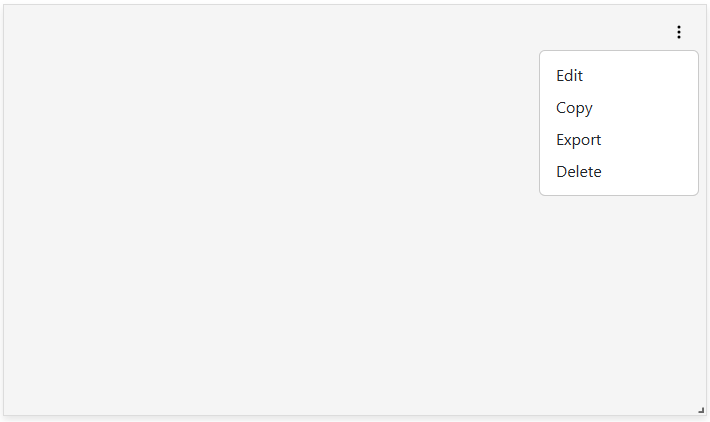
Use the context menu on each item to edit, copy, delete, or export visualizations
Save or revert changes

Tabs
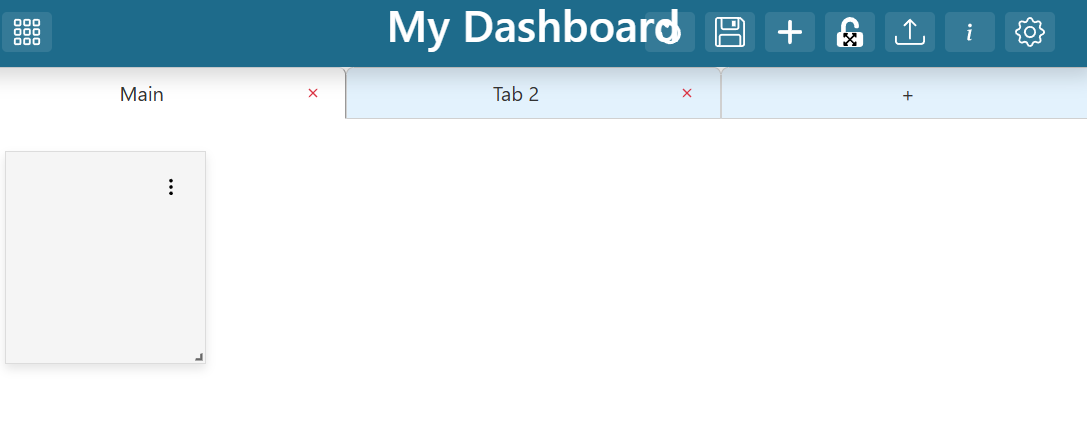
Tabs help organize dashboard content. Click the plus sign at the top to add a tab. Rename tabs by clicking their name. Tabs can reference information from other tabs.
Adding Dashboard Items
To add a new dashboard item, click the “Add Dashboard Item” ( ) button in the header. A new item appears in the top left corner. Move items by dragging, and resize using the handle in the bottom right corner.

Dashboard Item Context Menu
Each dashboard item has a context menu (top right) for editing, copying, deleting, or exporting the visualization.